My Digital Campus ESME is based on the Alcuin platform, which centralizes schedules, grades, educational documents, and administrative communication. The login relies on Microsoft authentication, which involves a technical process distinct from that of a simple traditional web portal. Understanding this mechanism avoids most of the issues encountered at the start of each term.
Microsoft SSO Authentication on My Digital Campus ESME
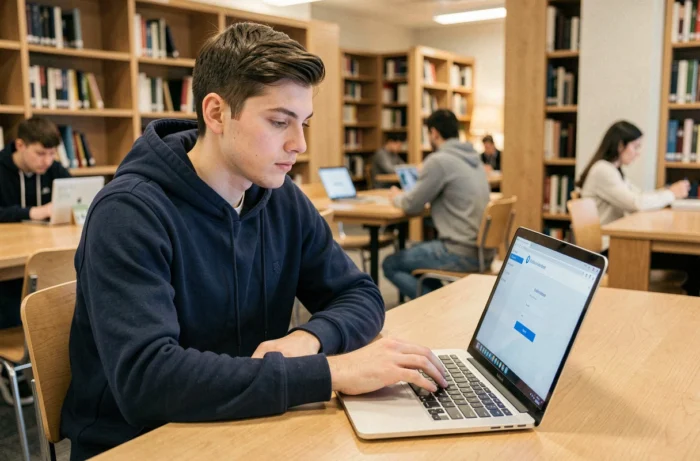
The My Digital Campus ESME portal uses single sign-on (SSO) via the Microsoft infrastructure. When you click the login button, the browser is redirected to the institution’s Microsoft tenant. This is not a simple login/password form hosted on the Alcuin site.
This architecture means that your ESME credentials are managed on the Microsoft side. Any password changes, account lockouts, or security policies (expiration, complexity) depend on the school’s Microsoft configuration, not Alcuin.
In practice, if your browser maintains an active Microsoft session (Outlook, Teams, OneDrive), you can log in to My Digital Campus without re-entering your credentials. Conversely, logging out of your Microsoft account in another tab may invalidate the session on the extranet. We recommend not mixing personal Microsoft accounts and ESME accounts in the same browser profile. Create a dedicated profile (Chrome, Edge, Firefox) to isolate cookies and avoid session conflicts.
To find useful information on Mind Formation, particularly regarding the first login process, simply follow the account activation procedure specific to ESME before attempting direct access to the portal.
MFA Activation on the ESME Extranet: Configuring the Second Factor
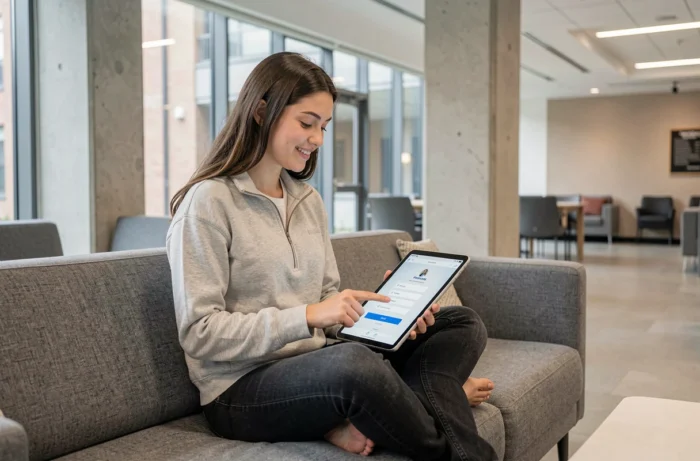
The official My Digital Campus portal now displays an explicit instruction: activate MFA (Multi-Factor Authentication) to secure access. This is no longer an optional feature. MFA relies on the Microsoft Authenticator infrastructure, which requires specific configuration.
Steps to Configure Microsoft Authenticator
Activation goes through the Microsoft security portal, accessible after a successful first login with your ESME credentials. From this portal, you register a secondary verification method.
- The Microsoft Authenticator app (iOS or Android) generates a temporary code or sends a push notification. This is the most reliable method to avoid issues in case of an unstable mobile network.
- Receiving an SMS on a mobile phone number is still possible, but it is subject to delivery delays and SIM card changes.
- An automated phone call is a third option, rarely used but useful if the smartphone does not support the Authenticator app.
A common mistake is to register MFA on one device and then change phones without transferring the configuration. In this case, the account remains locked until the ESME IT service has reset the MFA method. Anticipate any device changes by adding a backup method during the initial activation.
First Login and Password Reset: Two Distinct Processes
The My Digital Campus portal explicitly distinguishes between the first login and the recovery of a forgotten password. Confusing the two is the most common source of blockage for new ESME students.
First Login After Registration
After validating your registration, ESME sends a username and temporary password via email to the personal address provided during registration. Always check the spam folder.
The first authentication requires an immediate change of the temporary password. The new password must comply with the institution’s complexity policy (minimum length, character mix). Once this password is set, the activation of MFA is triggered automatically during the next session.
Forgotten Password After Activation
If you have already activated your account but forgotten your password, the procedure goes through the “Forgot Password” link on the portal. This link redirects to the Microsoft self-service password reset (SSPR). The reset requires validating your identity via the already registered MFA method.
If you do not have an MFA method configured or if you have lost access to your device, only the IT service can resolve the situation.

Troubleshooting Common Login Errors on My Digital Campus
Some issues recur frequently and do not stem from a forgotten password.
- An infinite redirect loop between the Alcuin portal and the Microsoft page indicates a cookie conflict. Clear the browser cache and cookies, or use a private browsing window.
- A message “Your account has been locked” appears after several failed attempts. Unlocking may be automatic after a delay or require intervention from the IT service depending on the institution’s policy.
- On mobile, using a browser embedded in an application (webview) may prevent SSO redirection. Always open the portal in the phone’s native browser (Safari, Chrome) to ensure compatibility with the authentication flow.
The downloadable login procedure directly from the My Digital Campus portal remains the reference to consult first. It covers standard cases and specifies the contact details for technical support for undocumented situations. A dedicated browser profile, properly configured MFA, and a clear distinction between first login and reset are sufficient to eliminate nearly all access difficulties to the ESME portal.